# Settings

#### 10(A). Manage Your Profile

The Profile section allows you to view your account information and manage your account.

1. Open **Settings** located at the top right corner of your dashboard.
2. Select **Profile** from the navigation panel on the left side.
3. Review your account information, including:
    
    
    - Name
    - Email ID
4. Click **Reset Password** if you want to change your password.
5. Click **Logout** to sign out of the application.
6. If required, select **Delete Account** to permanently remove your account.

<table border="1" id="bkmrk-" style="border-collapse: collapse; width: 100%;"><colgroup><col style="width: 50.0497%;"></col><col style="width: 50.0497%;"></col></colgroup><tbody><tr><td colspan="2">  
</td></tr><tr><td>  
</td><td>  
</td></tr></tbody></table>

#### 10(B). View Analysis Limits

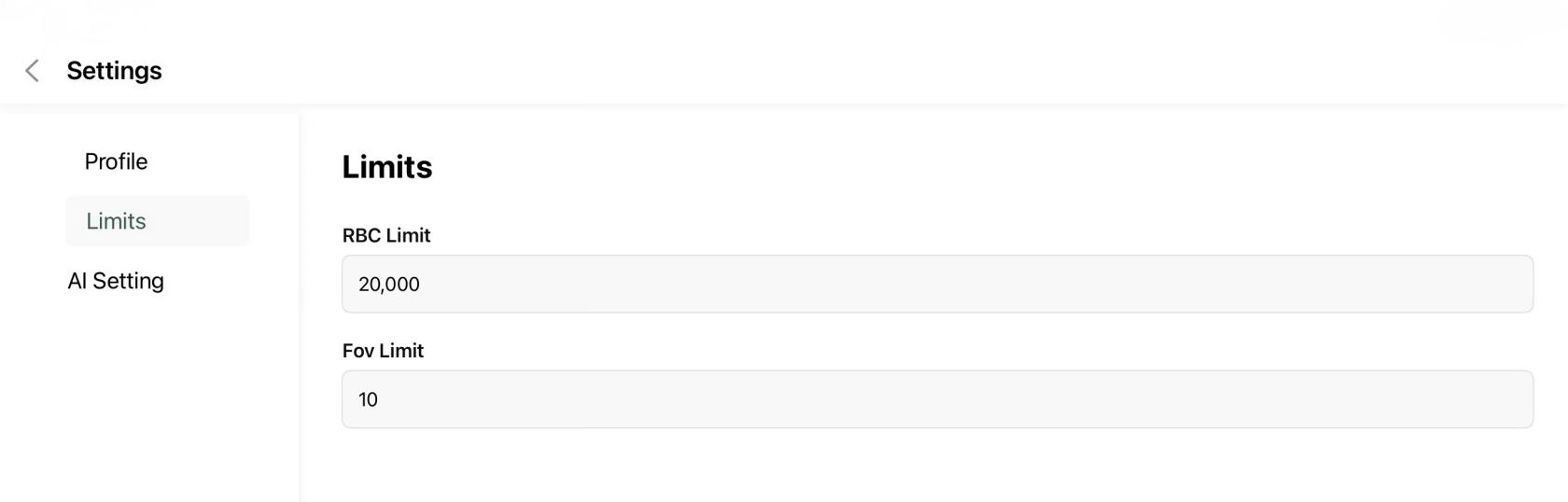
The Limits page displays the configured analysis limits used by the application.

1. Open **Settings**.
2. Select **Limits**.
3. Review the configured:
    
    
    - RBC Limit - Maximum number of red blood cells considered during analysis.
    - FOV Limit - Maximum number of Fields of View processed for a case.

<table border="1" id="bkmrk--1" style="border-collapse: collapse; width: 100%; height: 183px;"><colgroup><col style="width: 99.880952%;"></col></colgroup><tbody><tr><td>  
</td></tr><tr><td>[![IMG_0164.jpeg](https://docs.medprimetech.com/uploads/images/gallery/2026-07/scaled-1680-/2Jlimg-0164.jpeg)](https://docs.medprimetech.com/uploads/images/gallery/2026-07/2Jlimg-0164.jpeg) *Figure 10(B)*

</td></tr></tbody></table>

#### 10(C). Configure AI Settings

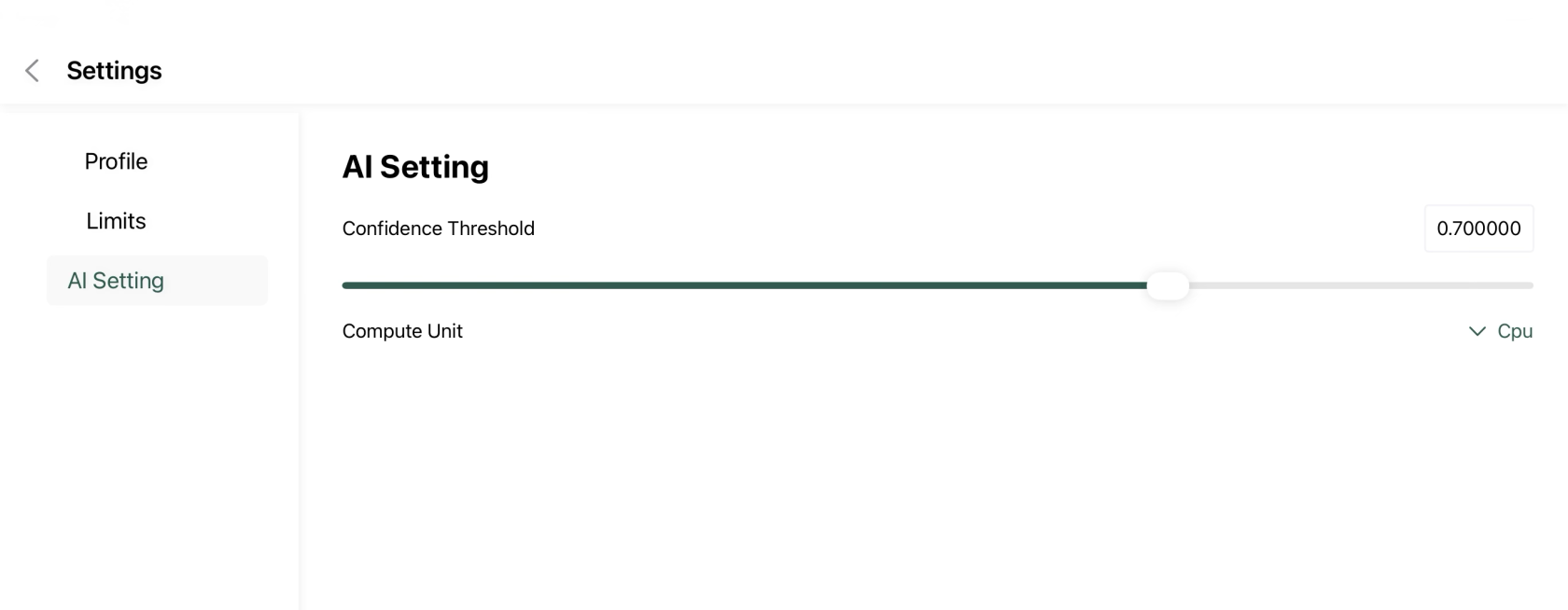
The AI Settings page allows you to customize how the AI model performs image analysis.

1. Open **Settings**.
2. Select **AI Setting**.
3. Adjust the **Confidence Threshold** using the slider.
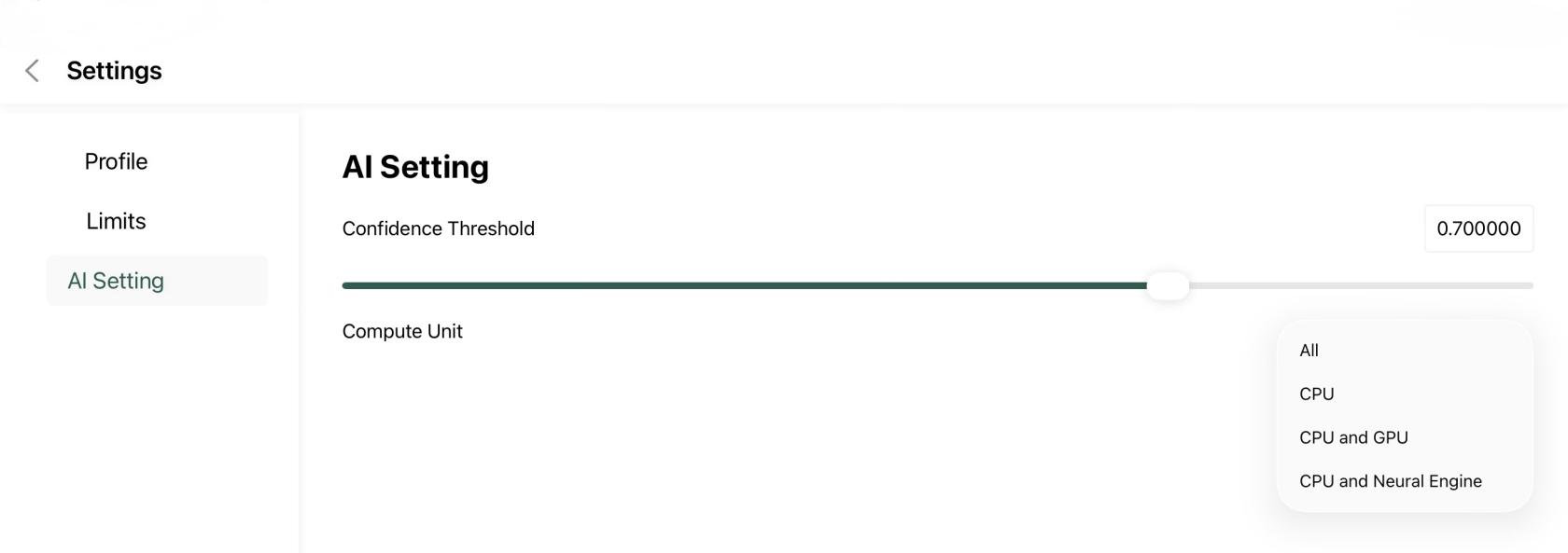
4. Select the preferred **Compute Unit** (for example, CPU).
5. The selected settings are applied for future image analysis.

<table border="1" id="bkmrk-%C2%A0-%C2%A0" style="border-collapse: collapse; width: 100%;"><colgroup><col style="width: 48.0245%;"></col><col style="width: 52.0748%;"></col></colgroup><tbody><tr><td>  
</td><td>  
</td></tr><tr><td>[![IMG_0165.png](https://docs.medprimetech.com/uploads/images/gallery/2026-07/scaled-1680-/tNWimg-0165.png)](https://docs.medprimetech.com/uploads/images/gallery/2026-07/tNWimg-0165.png)

<span style="color: rgb(45, 194, 107);">*Figure 10(C)*</span>

</td><td>![IMG_0163.jpeg](https://docs.medprimetech.com/uploads/images/gallery/2026-07/scaled-1680-/img-0163.jpeg)

Figure 10(C).1

</td></tr></tbody></table>