
Settings
10(A). Manage Your Profile
The Profile section allows you to view your account information and manage your account.
-
Open Settings located at the top right corner of your dashboard.
-
Select Profile from the navigation panel on the left side.
-
Review your account information, including:
-
Name
-
Email ID
-
-
Click Reset Password if you want to change your password.
-
Click Logout to sign out of the application.
-
If required, select Delete Account to permanently remove your account.
10(B). View Analysis Limits
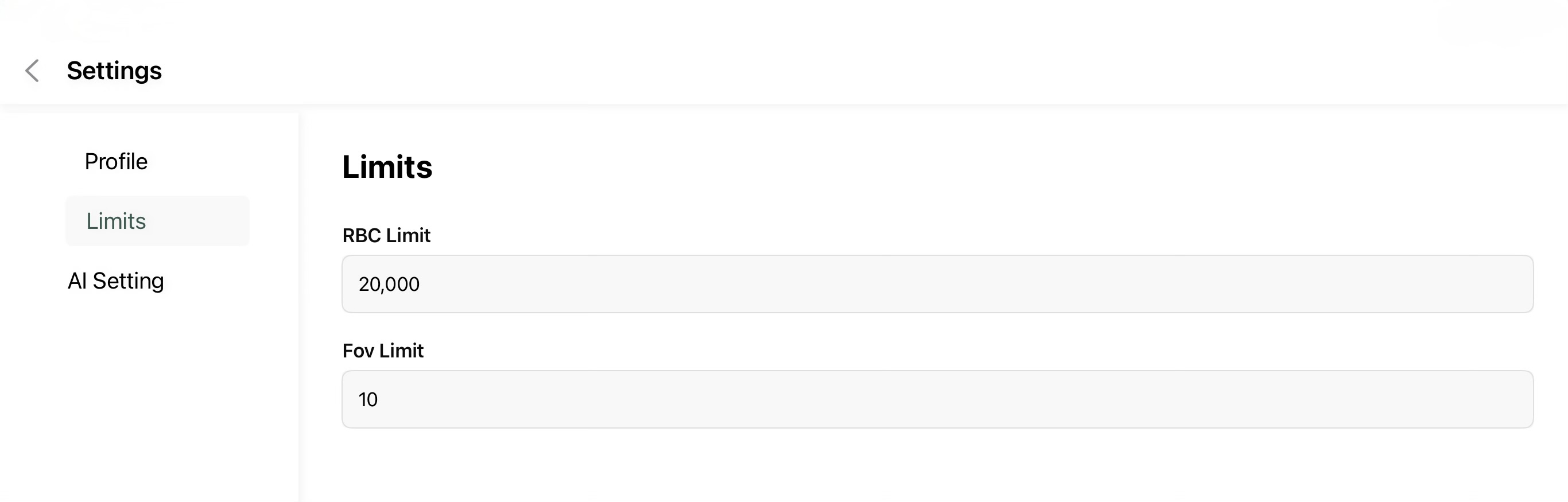
The Limits page displays the configured analysis limits used by the application.
-
Open Settings.
-
Select Limits.
-
Review the configured:
-
RBC Limit - Maximum number of red blood cells considered during analysis.
- FOV Limit - Maximum number of Fields of View processed for a case.
-
|
|
10(C). Configure AI Settings
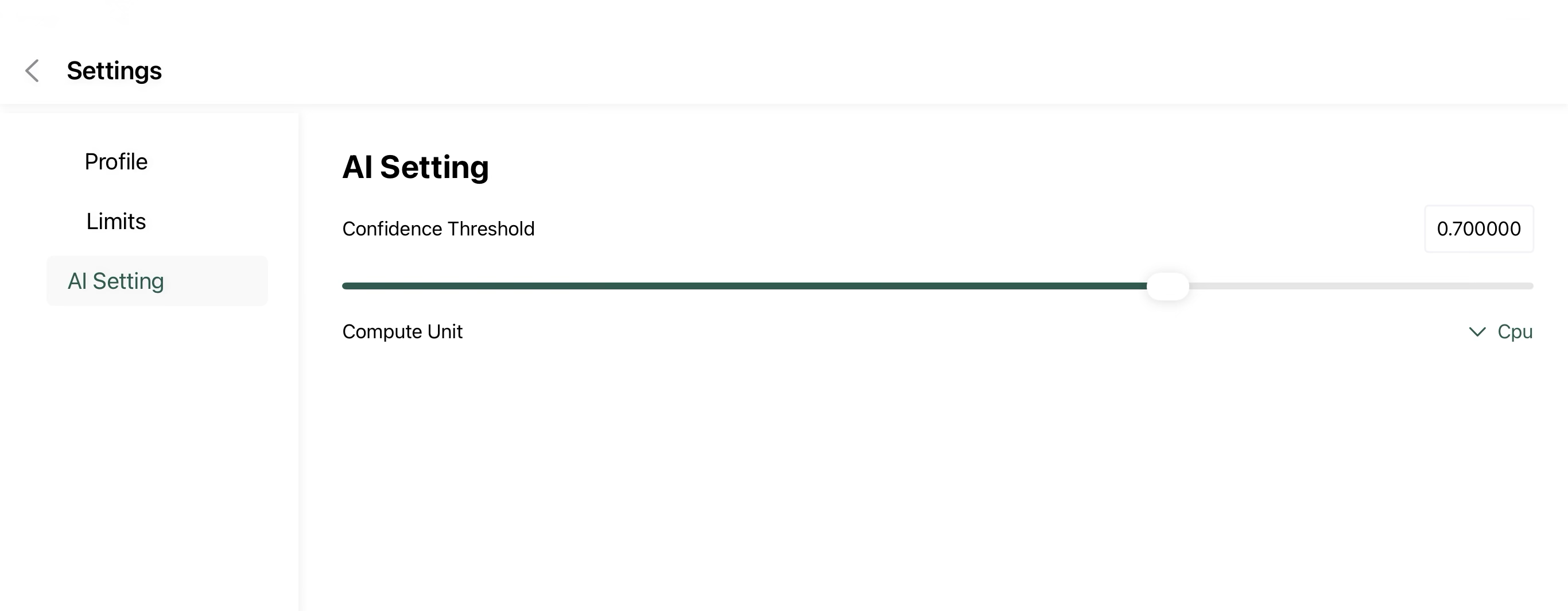
The AI Settings page allows you to customize how the AI model performs image analysis.
- Open Settings.
- Select AI Setting.
- Adjust the Confidence Threshold using the slider.
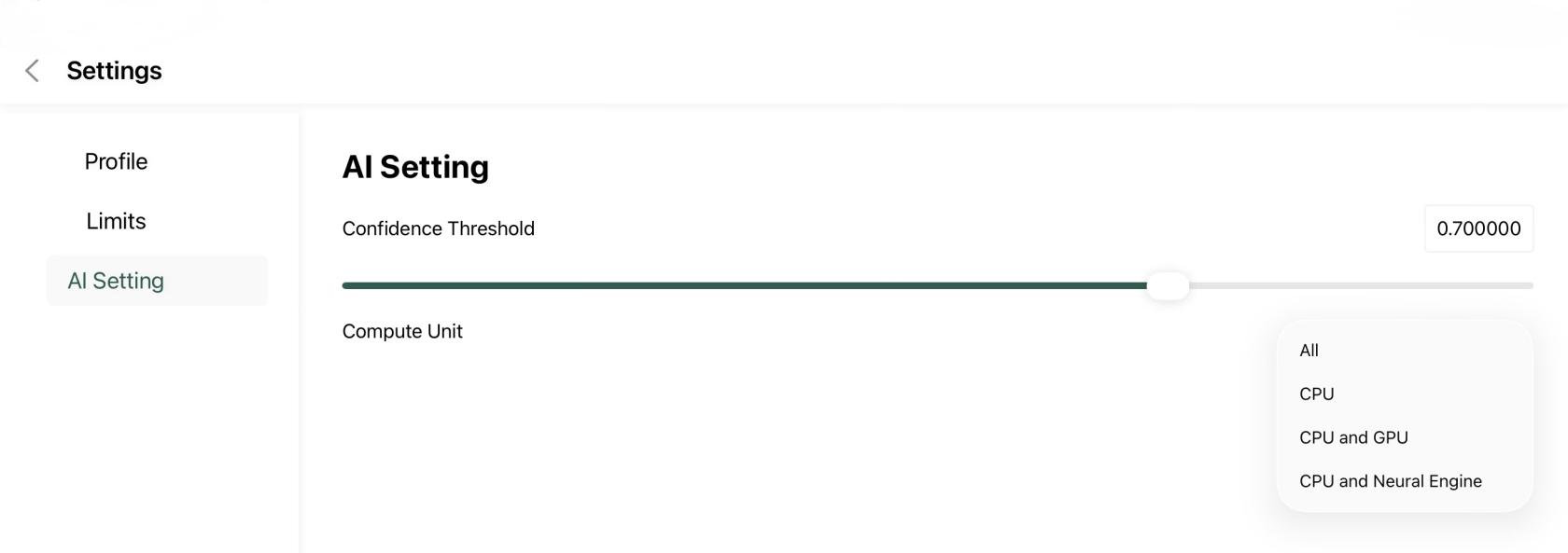
- Select the preferred Compute Unit (for example, CPU).
- The selected settings are applied for future image analysis.
|
Figure 10(C) |
Figure 10(C).1 |
No comments to display
No comments to display